Quick Start
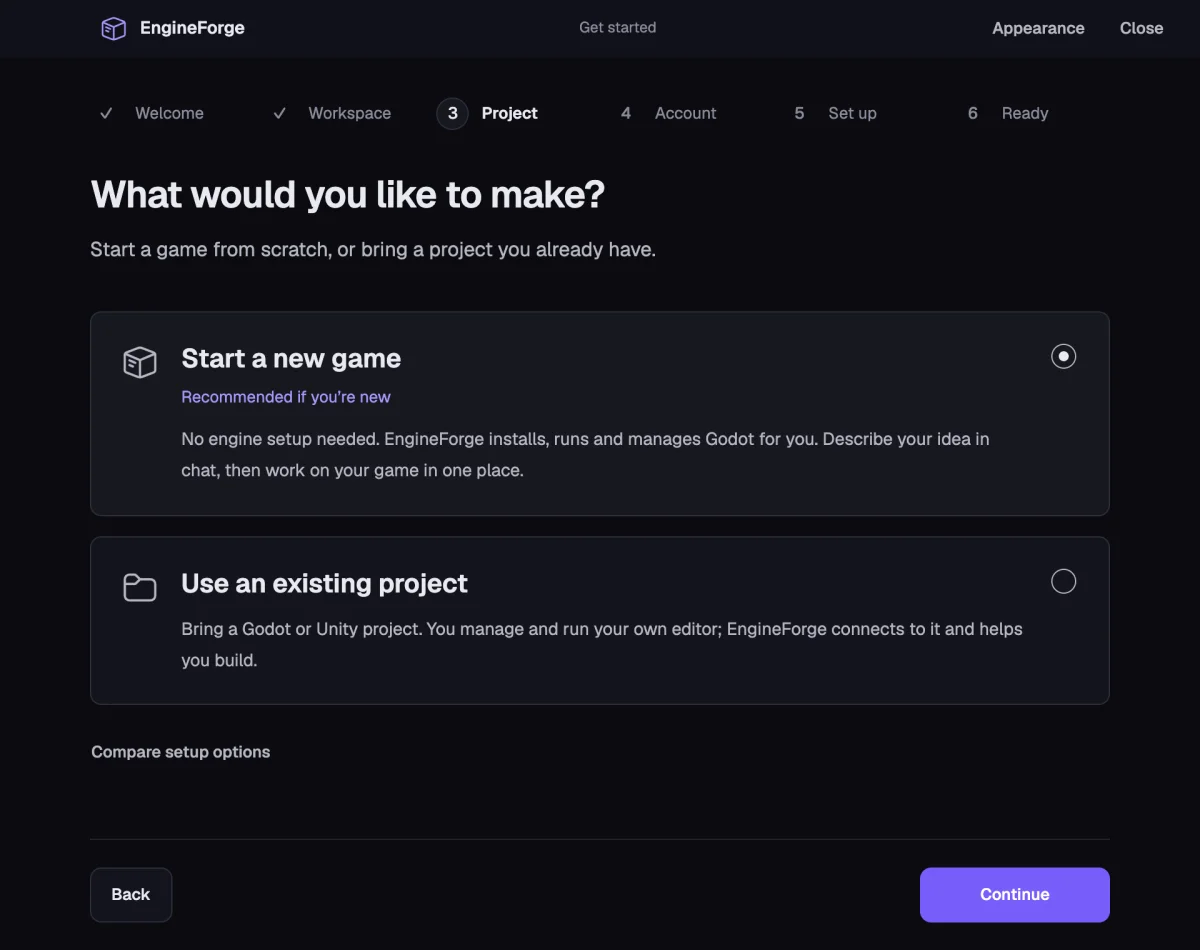
Install EngineForge, then choose one of two ways in: start a new game with no engine to install, or open a Unity or Godot project you already have.
1. Install EngineForge
- Open the Download page and choose macOS (Apple Silicon) or Windows (x64).
- Install and launch EngineForge. On Windows, SmartScreen may warn that the installer is not code-signed yet.
- Get started opens on first launch: choose the Cockpit or the Classic Editor and a theme. Both can be changed later in Settings.
2. Choose how to start
On the Project step, choose Start a new game or Use an existing project. Then sign in to your EngineForge account; the agents run through it.
Path A: Start a new game
- Choose Start a new game.
- EngineForge downloads the official Godot 4.6.1, checks it is genuine, and installs it. If the same version is already on your computer, it is used instead.
- Name your game. It is created in ~/EngineForge Games unless you choose another place.
- Optionally write what the agent should build first, then choose Create game.
- The game opens in the Cockpit with a Scene view, Play and Stop, and your first request goes to Maestro.
Path B: Open an existing project
- Choose Use an existing project, then the project folder: for Godot the folder with project.godot, for Unity the folder with Assets and ProjectSettings.
- Choose the Cockpit or the Classic Editor for this project. Your game editor stays separate.
- Open the same project in your own editor: Unity 2021.3 or later. URP is not required. For Godot: Godot 4.0 or later. Keep it open while you work.
- EngineForge installs its connection plugin and connects automatically. If Godot asks, enable EngineForge under Project Settings, Plugins.
- If you only want to work with files for now, choose Continue with files only and connect the editor later.
3. Send a first request
- Describe one small thing, for example: “Help me make a character that can move and jump.”
- Maestro leads the session and brings in the specialist who owns the work. Switch to Plan mode first if you want a read-only look before anything changes.
- Approve requests if your Auto-Approve settings ask for them.
- When the change affects how the game plays, the Worth a playtest? card lets you try it yourself, send the Playtester, or skip it.
- Review the changed files and diff. Undo a turn from its checkpoint if you do not want it.
Next steps
- Share your game: export desktop builds for macOS, Windows and Linux with Export Game.
- Make it feel good: ask for sound effects, music, impact and atmosphere and Juicer takes it.
- Add menus and saves: Systems Smith owns game state, HUD and menus.