Managed Godot
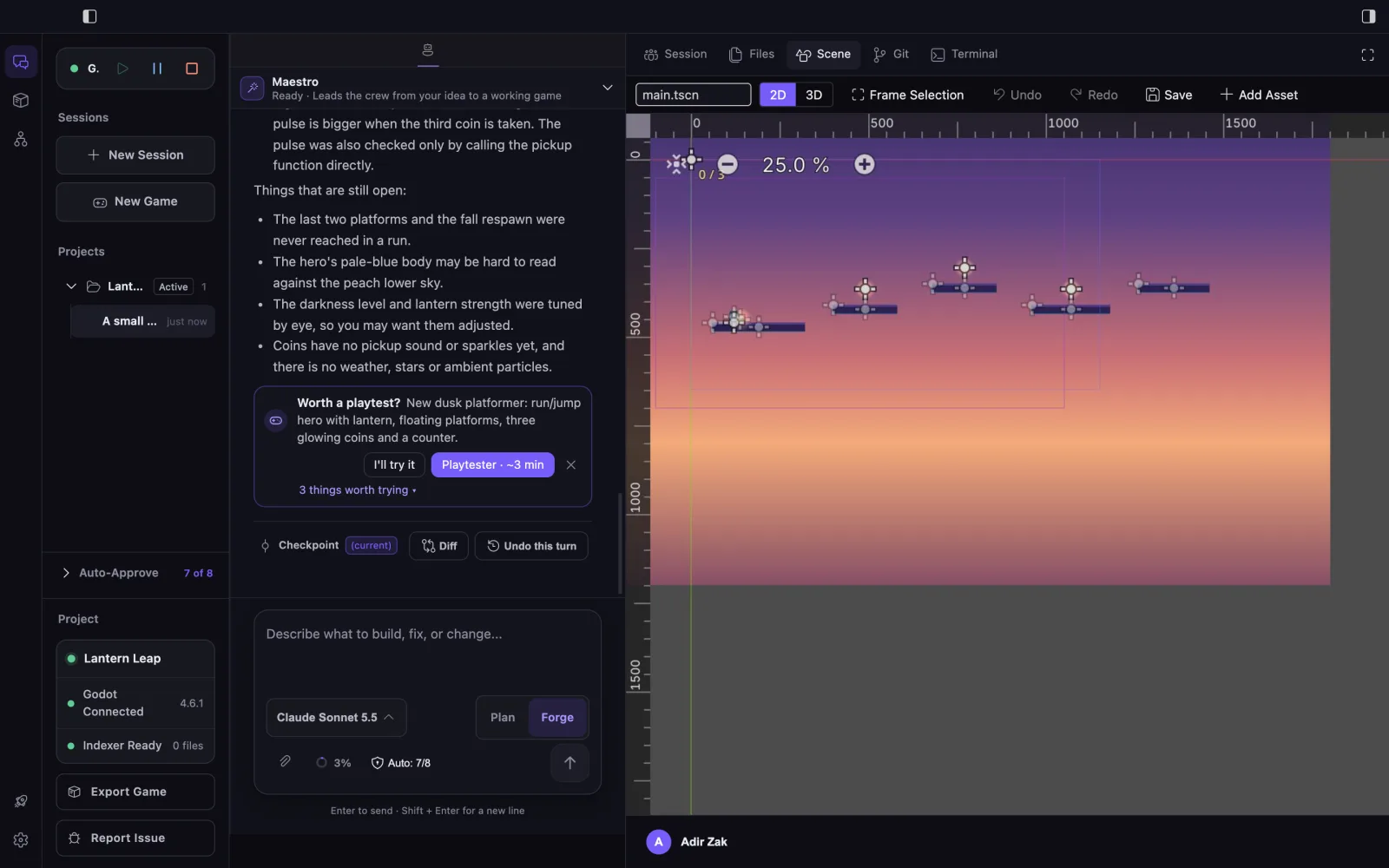
Start a new game without installing an engine. EngineForge downloads, installs, manages and launches Godot 4.6.1 for you, and opens the game in the Cockpit with a Scene view, Play and Stop.
What EngineForge does for you
- Downloads the official Godot 4.6.1 build and checks it is genuine before installing it.
- Uses the same Godot version if it is already on your computer instead of downloading it again.
- Prepares the engine and tests graphics, then keeps it running while you work.
- Creates the project for you and opens it in the Cockpit with a Scene view, Play and Stop.
- Sets up the EngineForge connection inside the game, so there is no plugin to enable.
Where it runs
Managed Godot runs on macOS and Windows. It needs about 350 MB of disk space for the engine, plus your games.
Start a managed game
- Choose Start a new game in Get started, or New Game in the Cockpit.
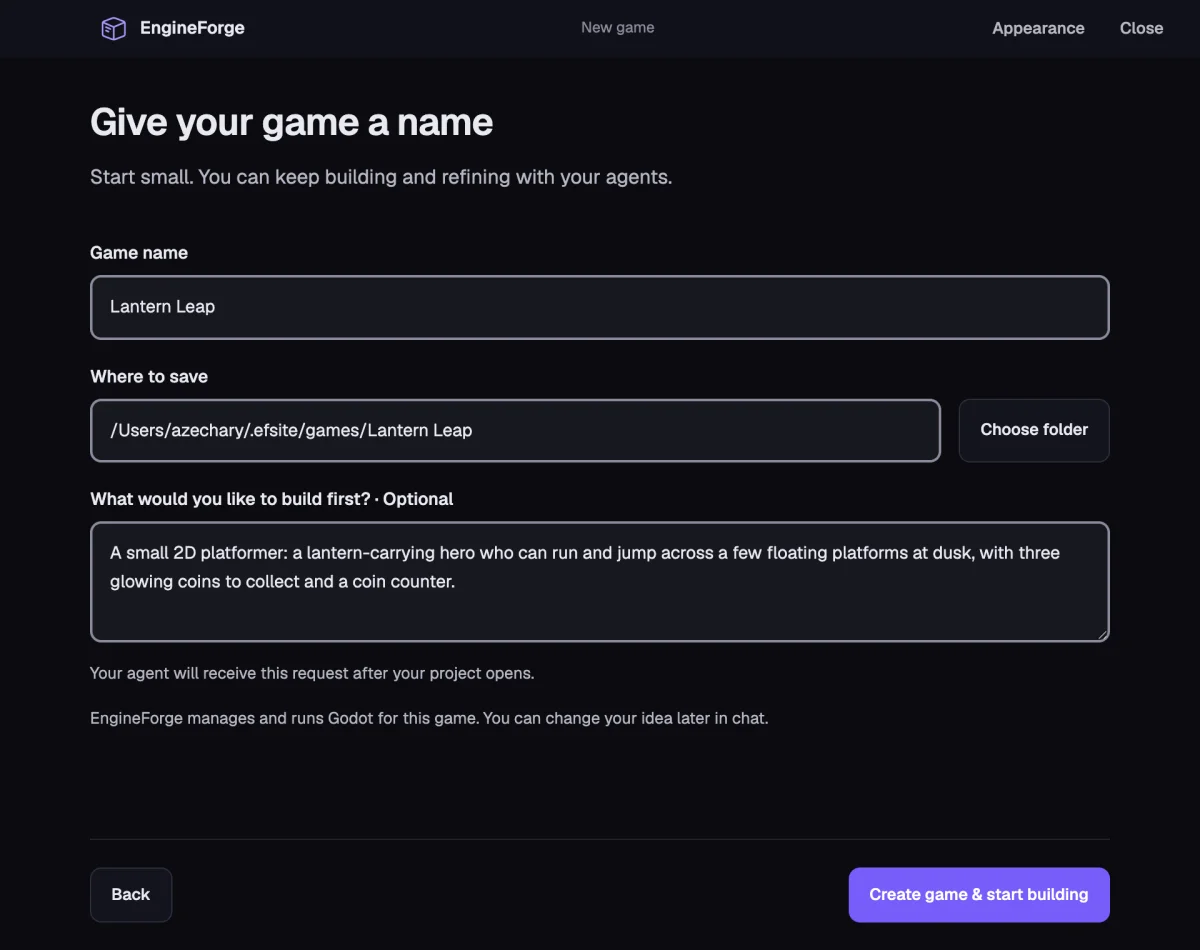
- Name the game. It is created in the Games Folder, ~/EngineForge Games by default; you can pick another place for each game.
- Optionally describe what the agent should build first, then choose Create game.
- Describe what you want in chat. Maestro brings in the specialists, and you watch the game change in the Scene view.
Settings
- Managed Engine on (Settings, Game Engine): EngineForge installs and runs Godot, new games are created this way, and EngineForge stays in the Cockpit.
- Managed Engine off: you use your own Unity or Godot editor, open projects yourself, and can use the Classic Editor for them.
- Switching never converts an existing game. Turning it off stops new managed work; an open managed game can still be saved, stopped and closed.
- Games Folder sets where new games are created.
- If setup fails or is cancelled, Try again or Set up now restarts it.
Limitations
- Managed games use GDScript. C# is not supported in managed games.
- Managed games use Godot’s Compatibility renderer, so some advanced 3D features are unavailable: compute shaders, volumetric fog, SDFGI, VoxelGI, SSAO, SSR, SSIL, GPU particle trails and decals.
- Blender files are not imported directly: export the model from Blender as .glb, then add that file.
- Managed games open in the Cockpit. While Managed Engine is on, EngineForge stays in the Cockpit; the Classic Editor is for projects whose editor you run yourself.
Your own Godot instead
Already have a Godot project or a different Godot version? Open it as an existing project and keep running your own editor. EngineForge connects to it and nothing is converted to a managed game.
Godot license
Godot Engine is free and open source, made by the Godot Engine contributors under the MIT license. EngineForge installs the official build unchanged.