Onboarding
Get started walks you through six steps: Welcome, Workspace, Project, Account, Set up and Ready. Your progress is saved, so you can stop and come back.
Welcome
A short introduction to building games with a team of AI agents. You can begin now or choose Set up later and return from Get started at any time.
Workspace and theme
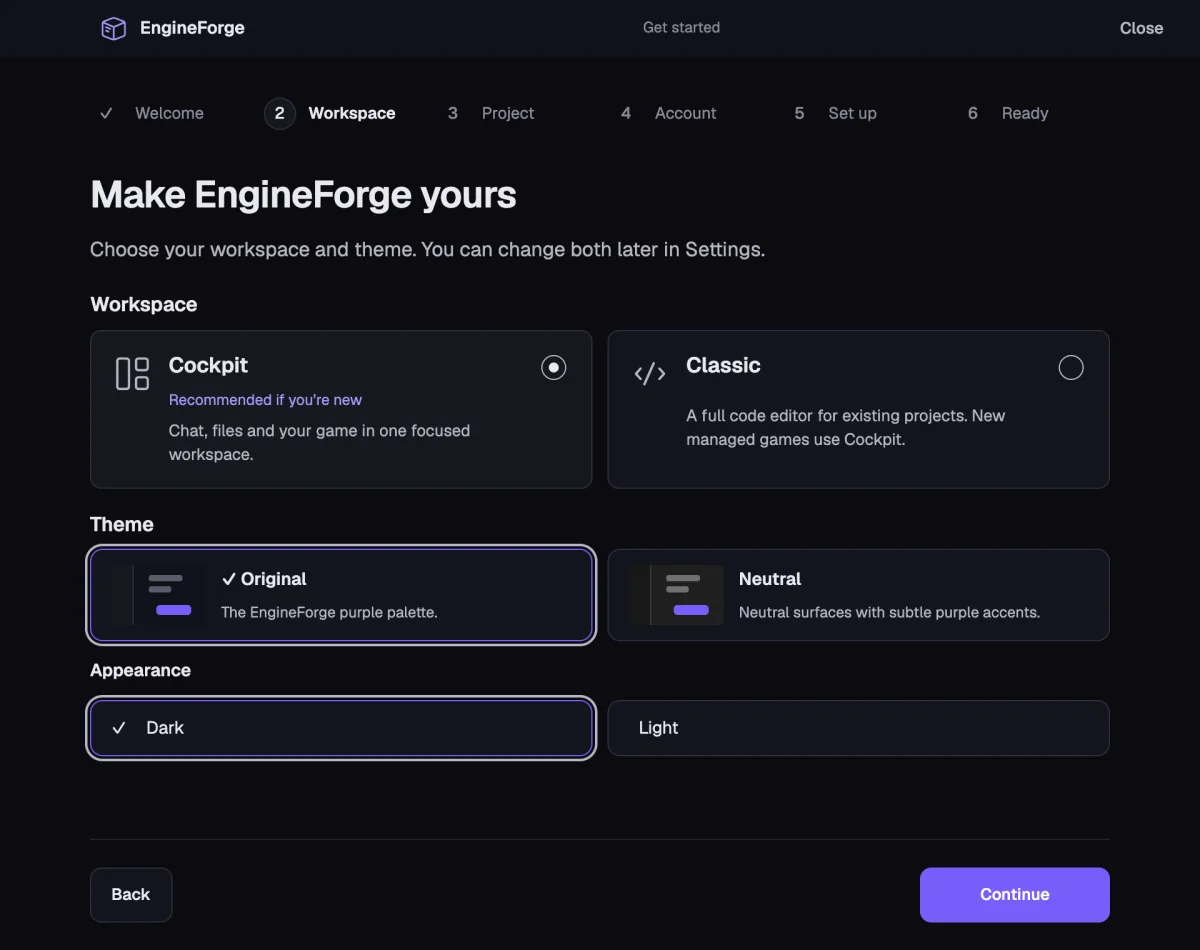
Choose the AI Cockpit, recommended if you are new, for chat, files and your game in one focused workspace, or the Classic Editor, a full code editor for existing projects. Choose a theme: Original or Neutral, in Dark or Light. Both choices can be changed later in Settings.
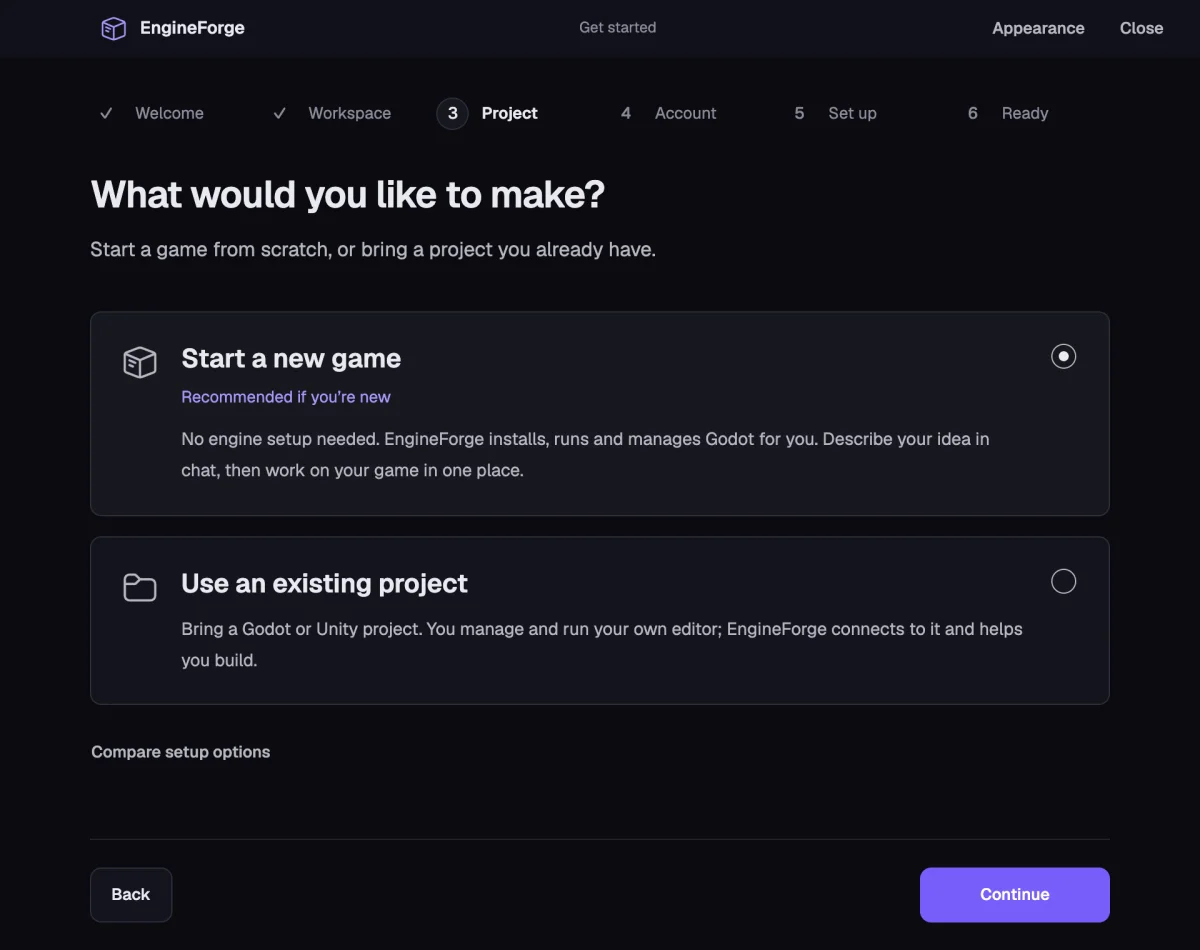
Project: two ways to start
- Start a new game: no engine setup needed. EngineForge installs, runs and manages Godot 4.6.1 for you, and you work on the game in the Cockpit.
- Use an existing project: bring a Godot or Unity project. You run your own editor; EngineForge connects to it. Your files stay where they are and nothing is converted.
- Compare setup options shows the difference side by side: who manages the engine, where you work, and where the project lives.
Account
Sign in to your EngineForge account. A secure sign-in page opens in your browser; return to EngineForge when you are done. If the page closes, open it again from the same step.
Set up: a new game
- EngineForge downloads Godot 4.6.1, checks the download is genuine, and prepares the engine. If that version is already on your computer, it is used instead of downloading.
- Name your game and, if you like, change where it is created. The default is ~/EngineForge Games.
- Optionally write what the agent should build first, then choose Create game.
- The setup continues in the Cockpit, where the game’s Scene view lives.
Set up: an existing project
- Choose the project folder: for Godot the folder with project.godot, for Unity the folder with Assets and ProjectSettings.
- If EngineForge cannot tell which engine the folder uses, choose another folder or tell it which editor you use.
- Open the same project in Godot or Unity and keep it open. EngineForge sets up its connection plugin and connects automatically.
- Continue with files only lets you work with the project files now and connect the editor later.
Ready
Your project is open. If you wrote a first request, it has been sent to Maestro; otherwise try asking something small, such as a character that can move and jump.
Change a choice later
Switch between the Cockpit and the Classic Editor from the product controls. Change the theme, startup view, Managed Engine and Games Folder in Settings. Managed games always open in the Cockpit, and while Managed Engine is on, EngineForge stays in the Cockpit.